Triggers & Webhooks
Trigger OAgents via HTTP webhooks.
Overview
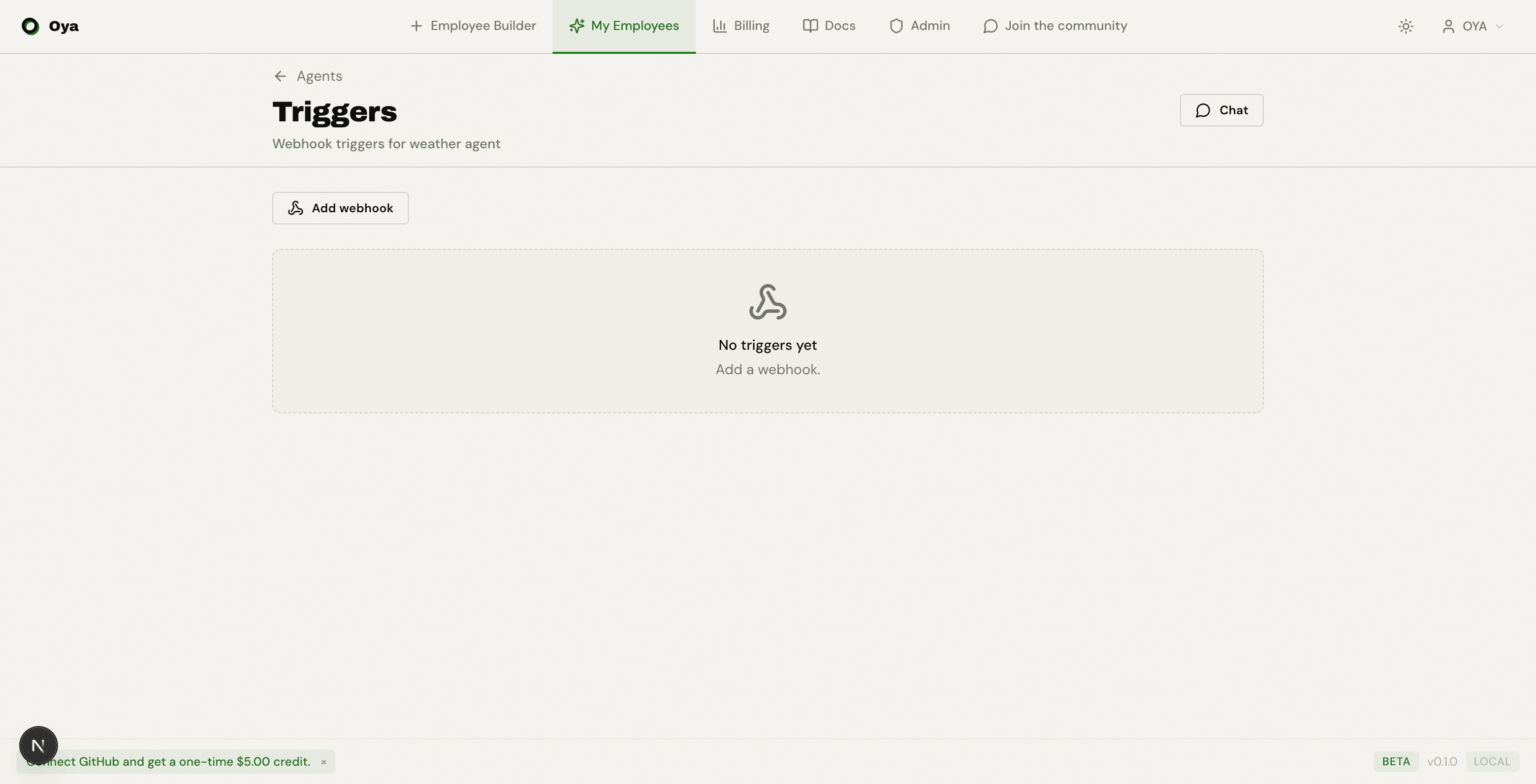
Triggers are HTTP webhooks designed for automation OAgents (imported scripts). Each trigger gets a unique URL that accepts POST requests with a JSON payload. When called, the payload is passed to your OAgent's script as input, and the result is available via a polling endpoint.
Creating a Webhook
Click Add webhook to create a new trigger. Each webhook gets:
- A unique URL (e.g., https://oya.ai/api/triggers/{id}/webhook)
- An optional HMAC secret for payload verification
- A ready-to-use cURL command for easy testing
Calling a Webhook
Send a POST request to the webhook URL with a JSON body. Include the x-trigger-secret header if an HMAC secret was configured.
curl -X POST "https://oya.ai/api/triggers/{id}/webhook" \
  -H "Content-Type: application/json" \
  -H "x-trigger-secret: your_secret_here" \
  -d '{"zip_code":"10001"}'
The webhook returns 202 Accepted with a job_id in the response body. This confirms the job was queued for processing.
Polling for Results
Use the status endpoint to check whether the job has finished, then retrieve the result once the status is done.
# Poll status
curl -s "https://oya.ai/api/agent-run-jobs/{job_id}/status" \
  -H "x-trigger-secret: your_secret_here"

# Get result (when status is done)
curl -s "https://oya.ai/api/agent-run-jobs/{job_id}/result" \
  -H "x-trigger-secret: your_secret_here"
The status field returns one of four values:
- queued: the job is waiting to be picked up
- running: the OAgent script is executing
- done: execution completed successfully
- failed: execution encountered an error
Built-in Test Tool
The triggers page includes a JSON payload editor and a Send test button. Enter a sample payload, fire the webhook, and the UI automatically polls for the result: showing "Waiting for result..." until the job completes, then displaying the full response inline.
Managing Triggers
In addition to creating and testing triggers, you can manage them in several ways:
- Activate / Deactivate: Toggle a trigger on or off without deleting it. Inactive triggers show a badge and reject incoming webhooks.
- Trigger Logs: Each trigger has a collapsible log section showing recent executions with timestamp, success/failure status, thread link, and error messages.
- Secret Management: Copy, update, or regenerate the HMAC secret at any time. Update all calling systems after rotation.
- Description: Add an optional description to document what the trigger is used for.
- Global View: The /triggers page shows all webhooks across all OAgents in one place.
Security
Webhook security is handled via HMAC secret verification. When a secret is configured, every incoming request must include the matching x-trigger-secret header. All webhook URLs are HTTPS only.