Building OAgents with Oya Engineer
The builder is a conversational workspace. Describe what you want in plain language, review the plan Oya Engineer proposes, and click Build it. A deterministic pipeline creates the OAgent, wires up its skills, and deploys it once it passes evals.
The workspace
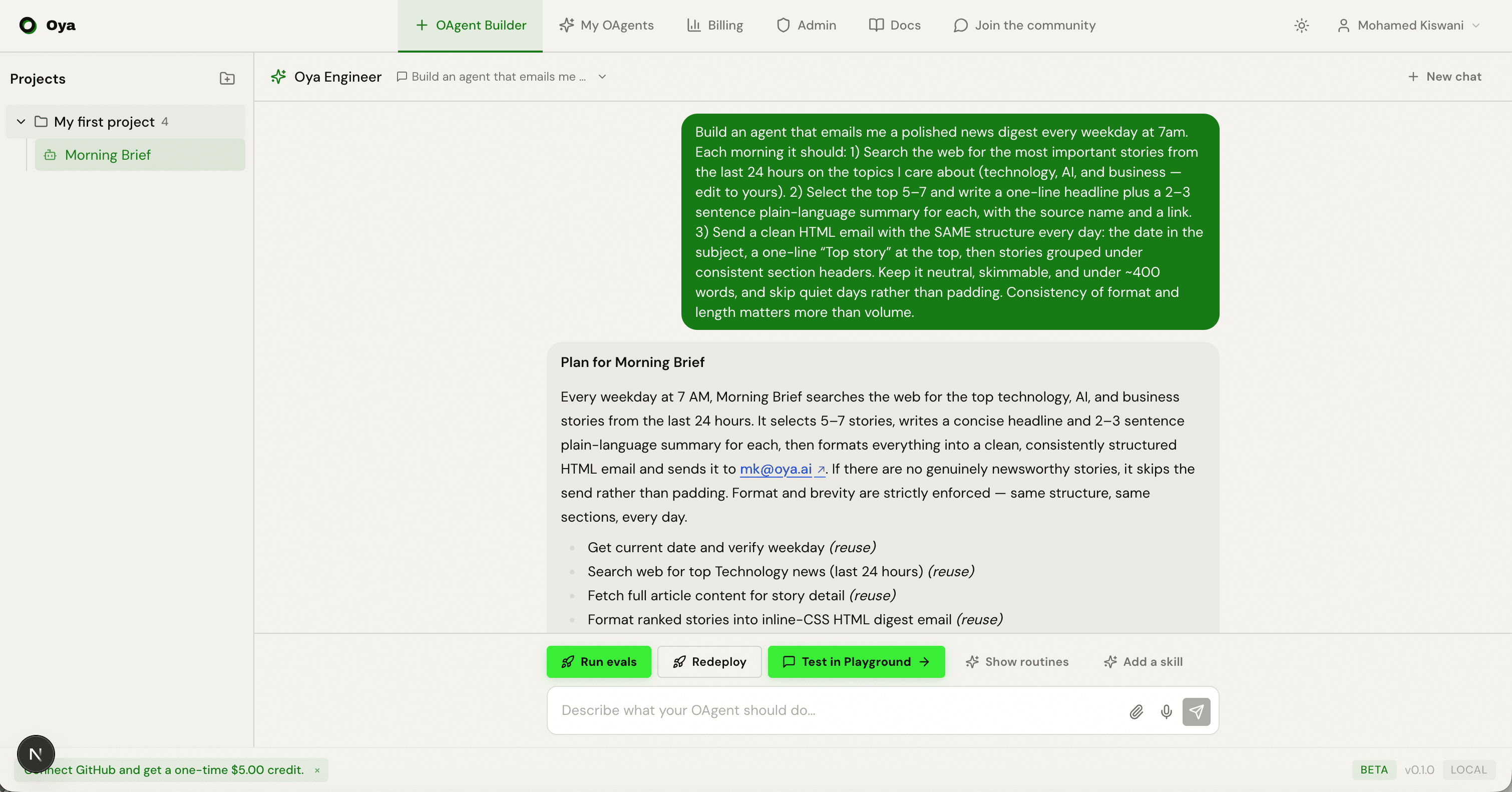
Open /agent-builder and you land in a single workspace rather than a step-by-step wizard. It has three regions:
- Left sidebar: your projects and the OAgents inside each one. Select an OAgent to work on it, or start a new one. Projects group related OAgents (for example, one project per team or client).
- Center playground: the main area where you talk to Oya Engineer, watch it build, and see each change it makes.
- Bottom builder chat: the composer for Oya Engineer, pinned to the bottom so it stays in reach while you scroll.
- Right panel: a drag-resizable column that slides in when a build needs you to connect an app (a gateway) or enter a skill’s API credentials.
When no OAgent is selected, the builder chat shows starter templates to get you moving quickly. Clicking one sends a full, opinionated brief straight to Oya Engineer so you can refine it in follow-up messages:
- SDR agent: finds and enriches leads each weekday, researches a personal hook for each, drafts a cold email, and logs everything to a sheet for review.
- Daily news digest: emails you a formatted digest of the top stories every weekday morning.
- Support triage: reads incoming support email, classifies it, and drafts replies for you to approve.
Describe the mission
Tell Oya Engineer what you want your OAgent to do, in plain language. Be specific about the task, the data sources, and the output. For example: “Reply to my support email and escalate refunds to Slack,” or “Research new leads each morning and draft outreach.” The more concrete the mission, the better the plan.
The composer supports more than typing:
- Voice input: click the microphone to dictate. Your speech is transcribed and appended to the message.
- File attachments: attach images to show Oya Engineer what you mean, or attach documents (PDF, text, CSV, and more) which are uploaded to the OAgent’s knowledge base so it can reference them at runtime.
- Saved chats: every build conversation is a saved session. Use the session dropdown next to “Oya Engineer” to revisit an earlier chat, or click New chat to start a clean one.
The plan and “Build it”
Oya Engineer never builds anything from your first message. It first responds with a plan: the OAgent's name, a short summary, the ordered list of capabilities it will use (each marked reuse for an existing catalog skill or build for a new one it will generate), and the connections the OAgent needs. Below the plan is a Build it button.
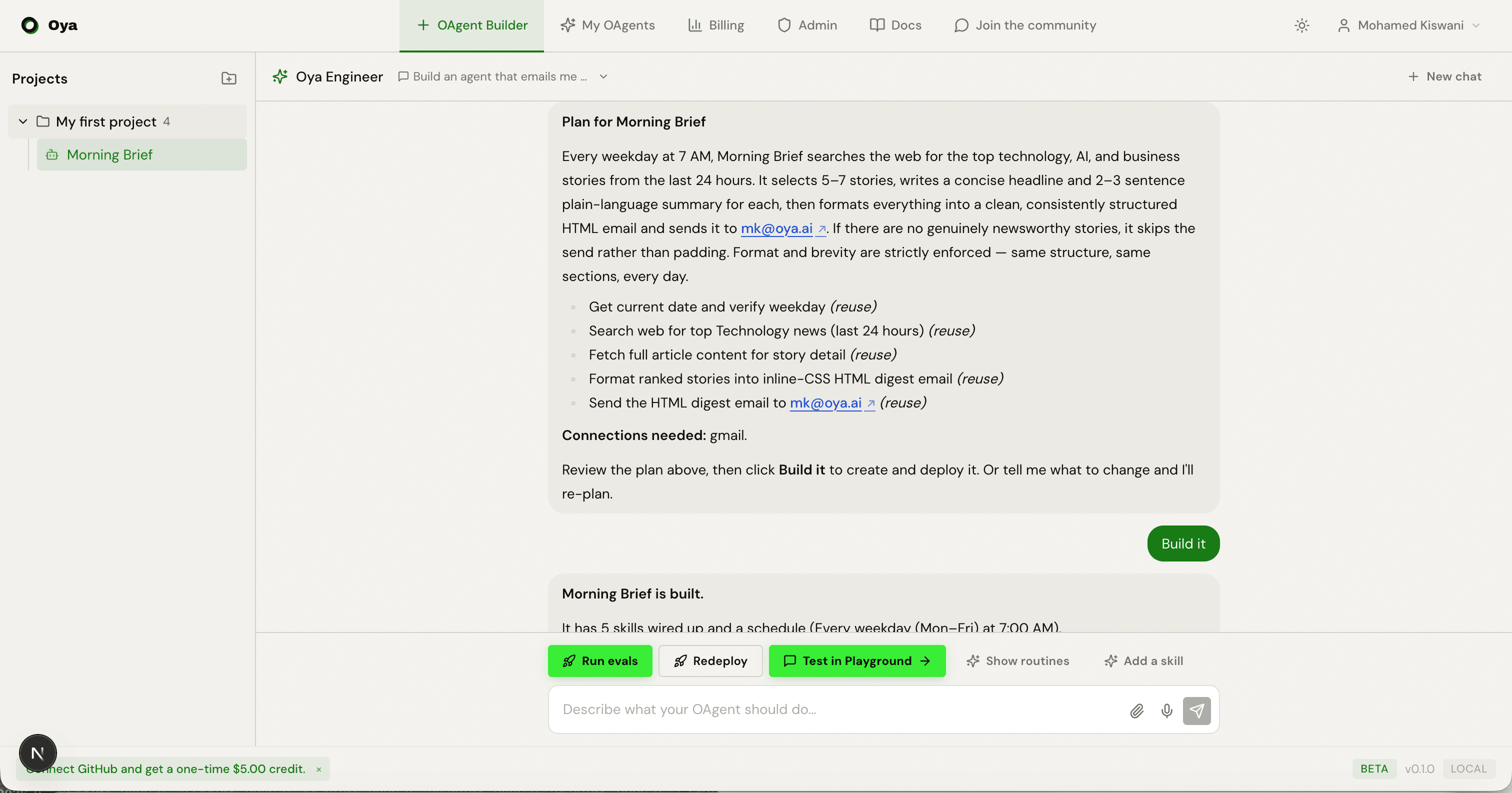
Clicking Build it is a dry run: it only configures the OAgent. It sends no real emails, no DMs, and takes no live action against your connected apps. Nothing is created or deployed until you approve the plan this way, so you can iterate on the plan as many times as you like first: reply with what to change and Oya Engineer produces a complete updated plan.
The build pipeline
Once you approve, a deterministic build pipeline runs. The control flow is fixed code; the AI is confined to bounded sub-tasks like planning and skill generation. Each phase streams into the chat as a change chip so you can watch it happen:
- Create the OAgent: a new draft OAgent is created in the active project with the core skills every OAgent gets.
- Reuse or build skills: for each capability in the plan, Oya Engineer attaches an existing catalog skill when one fits, or generates a new single-purpose skill and smoke-tests it in a sandbox.
- Shape personality and schedule: it sets the OAgent’s persona, mission, behavior rules, and welcome message, and creates any scheduled routines the mission called for.
- Flag connections: for any app the OAgent needs (for example Gmail or Slack) that is not connected yet, it emits a Connect action and records the requirement.
Builds deliberately decompose a mission into small, single-purpose skills (one job, clear inputs, one output) rather than one large do-everything skill. This keeps each skill easy to test and reuse. Oya Engineer prefers reusing catalog skills over generating new code, so web search, fetching a URL, and sending email typically reuse existing skills that need no API key.
Next-step actions
After an OAgent exists, a persistent row of next-step buttons sits just above the composer. They stay in place regardless of what you do next, so the obvious move is always in reach:
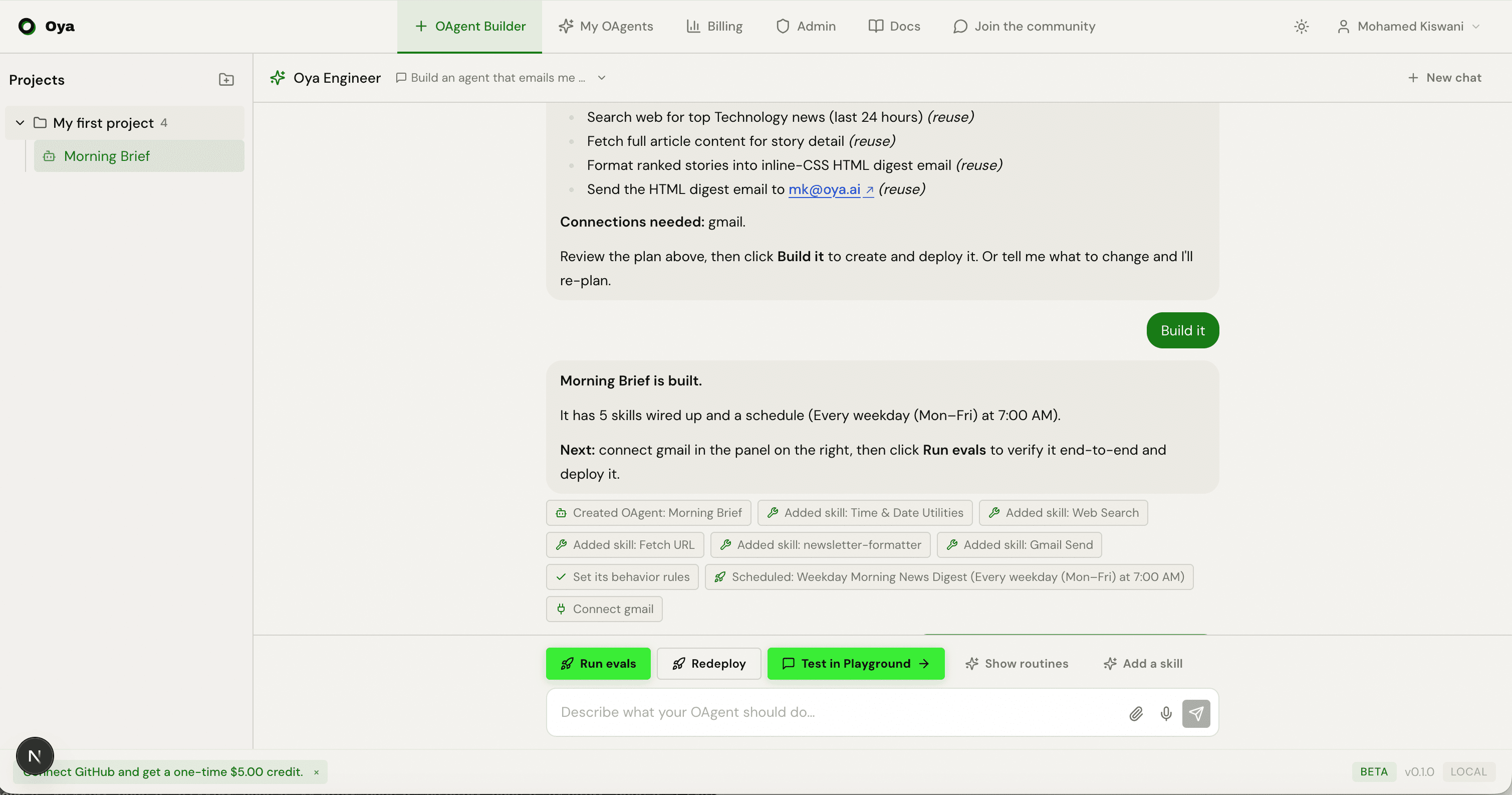
- Connect {app}: appears when the OAgent still needs a connection (for example Connect gmail, slack). It opens the right-side panel to sign in. The OAgent won’t work end to end until its required apps are connected.
- Run evals: runs end-to-end tests against the built OAgent (happy-path and edge cases), auto-repairs what it can, and deploys the OAgent if it passes.
- Deploy / Redeploy: deploys the OAgent (or redeploys after changes) without running the full eval suite.
- Test in Playground: opens the OAgent’s chat at /chat/{id} so you can use it as an end user. This appears only after the OAgent is deployed.
Editing an OAgent
Oya Engineer isn't only for the first build. With an OAgent selected, keep chatting to change it: add or swap a skill, adjust behavior rules, add a schedule, or extend what it does. The same plan-and-confirm and eval flow applies, so edits are verified the same way as the initial build.
You can also reach this flow from the OAgents list: the Edit action deep-links to /agent-builder?agentId={id} with that OAgent preselected and its project in scope.