Chat
Talk to your OAgents.
Chat Interface
The chat page opens when you click Playground on any deployed OAgent. The header shows the OAgent name, and a Back link returns you to the OAgents list. It is a playground: talk to the OAgent on the left, and fix or inspect it in the right-side panel (see The right-side panel) without leaving the page.
On the left, the thread sidebar lists all past conversations with this OAgent. Click New chat to start a fresh thread. Each thread maintains its own conversation history, so switching between threads picks up exactly where you left off. If an OAgent has a welcome message configured in its Soul, it appears as the first bubble in every new thread.
Thread Management
- Auto-naming: New threads are named automatically from the intent of your opening messages, so the sidebar reads like a list of topics rather than "New chat".
- Rename: Double-click a thread title (or use its rename control) to set your own name. A manual rename sticks: auto-naming stops overwriting it. This calls PATCH /api/chat/threads/{id}.
- Search: When you have more than 3 threads, a search box appears to filter by title.
- Delete: Hover over a thread and click the trash icon to delete it. If you delete the active thread, the app switches to the most recent remaining thread.
- Streaming indicator: Threads actively receiving a response show a spinning loader icon in the sidebar.
- Concurrent streams: You can send messages to multiple threads at once. Switching threads while one is streaming keeps the original thread processing in the background.
The Right-Side Panel
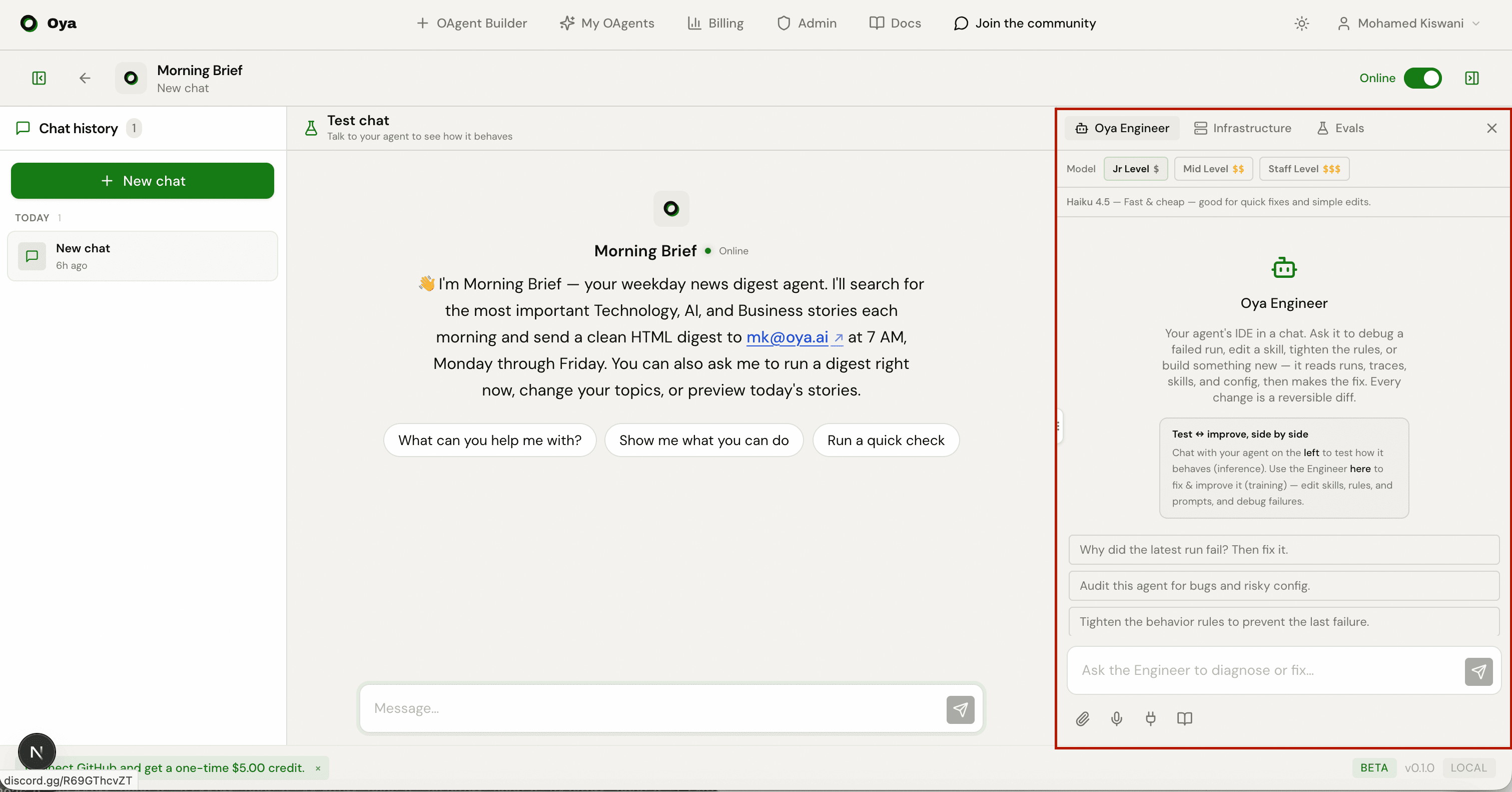
Alongside the conversation, a collapsible panel on the right lets you improve the OAgent while you talk to it. Toggle it with the Show / Hide Engineer control, and drag its left edge to resize (the width is remembered). It has three tabs:
Oya Engineer
A chat with the Oya Engineer, the assistant that edits this OAgent for you. Describe what is wrong or what you want to change ("stop using emojis", "add a Slack channel", "swap this skill") and it applies the fix to the OAgent's configuration. It shares the same underlying tooling as the OAgent IDE, so you can debug and iterate right next to the conversation.
Infrastructure
A live view of everything the OAgent runs on: sandbox status (CPU, memory, disk), files and running processes, plus its skills, gateways, routines, knowledge base, memories, and secrets. Use it to confirm the OAgent is provisioned correctly and to manage its resources in place.
Evals
Build and run evals: saved test scenarios that check the OAgent still behaves the way you expect. You can generate cases, run them, and watch pass/fail scores stream in. See the Evals page for the full workflow.
Streaming Responses
Responses stream in real-time via Server-Sent Events (SSE). As the OAgent generates text, it appears token by token in the chat window with a blinking cursor. While the OAgent is thinking, you see contextual status messages: "Thinking...", then "Working on it..." after 5 seconds, then "Still processing..." after 30 seconds. Press Shift+Enter to add newlines in your message before sending.
You can also stream responses programmatically using the OpenAI-compatible API:
# pip install openai
from openai import OpenAI

client = OpenAI(
    api_key="a2a_your_key_here",
    base_url="https://oya.ai/api/v1",
)

stream = client.chat.completions.create(
    model="gemini/gemini-2.0-flash",
    messages=[{"role": "user", "content": "Tell me about AI agents"}],
    stream=True,
)
for chunk in stream:
    delta = chunk.choices[0].delta.content
    if delta:
        print(delta, end="", flush=True)
Skill Execution Progress
When the OAgent runs skills, detailed step-by-step progress messages stream above the response in real time. Each step shows what the OAgent is doing:
- Planning…: the OAgent is deciding which skills to use.
- LLM responded (2.1s): the language model returned a result.
- Running skill: canvas_design: a specific skill is executing.
- Starting sandbox… → Sandbox ready: the isolated execution environment is booting.
- Uploading 3 script(s)… → Installing 2 package(s)… → Running script…: sandbox execution stages.
- Script finished, scanning for output files…: post-execution file detection.
- canvas_design completed (12.3s): skill finished with elapsed time.
- Analyzing results (step 2)…: the OAgent is processing results for the next LLM round.
Once the run finishes, the live log does not disappear: it collapses into a single Execution log · N steps header above the reply (or Execution failed if a step errored). Click it to reopen the full terminal log for that turn at any time. This replaces the generic "Thinking..." indicator for skill-based OAgents.
Rich Content Rendering
Messages support GitHub Flavored Markdown with several advanced features:
- Tables, strikethrough, and task lists via GFM.
- Math / LaTeX: inline ($...$) and block ($$...$$) equations rendered with KaTeX.
- Mermaid diagrams: code blocks with ```mermaid are rendered as interactive flowcharts.
- Collapsible code blocks: Python and Diff blocks are collapsed by default, expandable on click.
- Syntax-highlighted code: all major languages with copy button.
- HTML live preview: code blocks with ```html show a Preview/Source toggle with a sandboxed iframe and "Open in new tab" button.
Script Terminal Log
For automation OAgents (script-based), a terminal-like log appears during execution showing script status with indicators ($ starting, ✓ done, ✗ failed) and elapsed time.
Trace Viewer
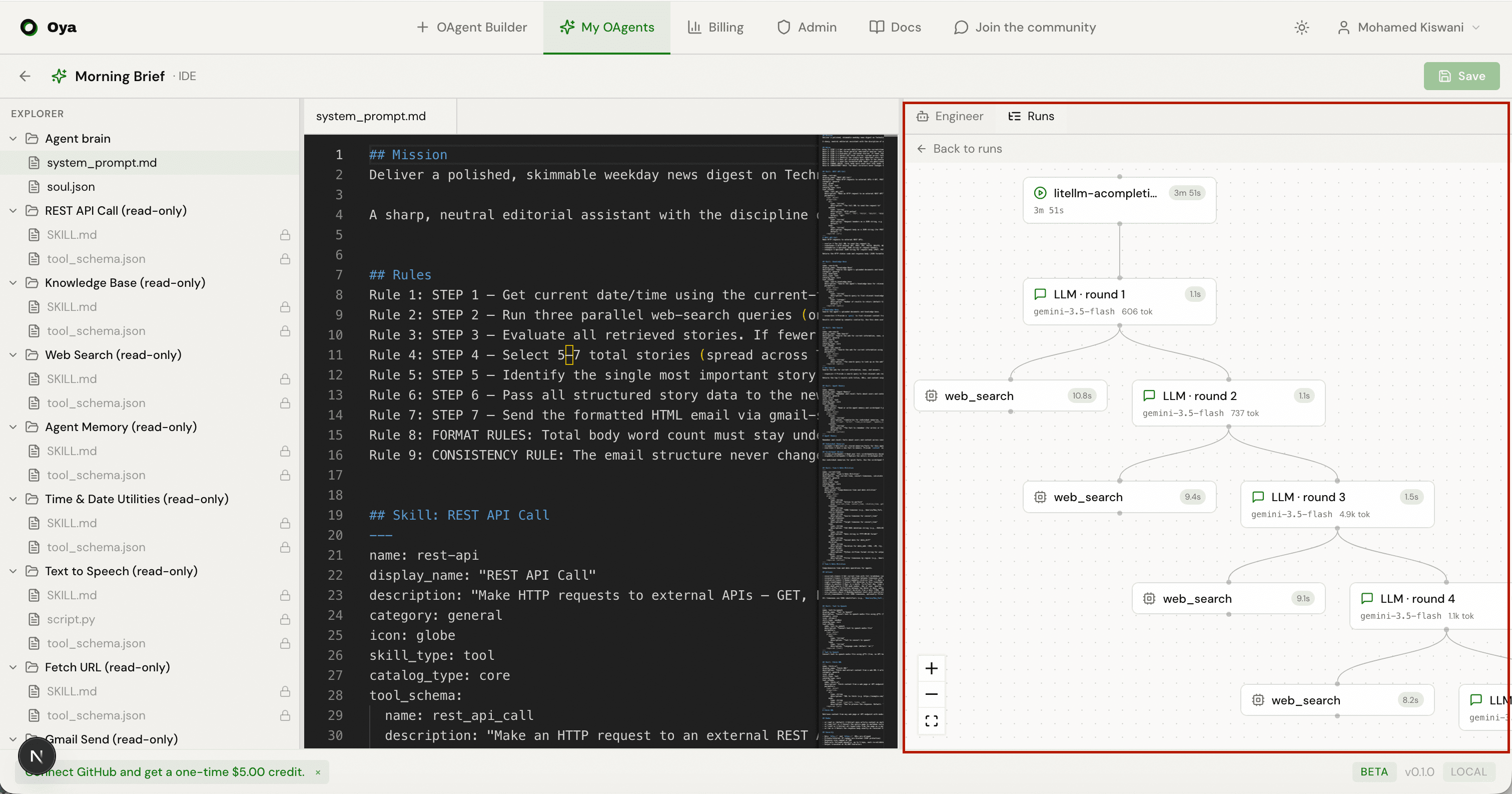
Each assistant message has a View trace button that opens the interactive run graph: a DAG of the full execution trace for that turn. It lays out every step the OAgent took to produce the response and lets you click into each node:
- LLM calls: model name, input/output token counts, cost in dollars, and per-step duration.
- Tool calls: skill name, input/output preview (expandable), and duration.
- Graph layout: steps are connected as a graph so you can follow the flow from the prompt through each skill call to the final answer.
- Summary badges: total tokens, total cost, model count, and error count at the top.
- Error highlighting: failed steps are shown in red with error details.
Fix it with Engineer
A failed step in the graph shows a Fix it with Engineer button. Clicking it packages that step's error and hands it to the Oya Engineer in the right-side panel, so you can go straight from a broken run to fixing the OAgent that produced it.
Debugging Gateway Messages
Every message your OAgent processes (whether it arrives from Slack, Discord, Telegram, or the web chat) gets a trace ID attached to the assistant response. This trace ID links to the full trace for that turn, including LLM calls, tool executions, token counts, cost, and duration.
Trace data is never sent back to the platform. Slack, Discord, and Telegram users only see the OAgent's text response. The trace ID is stored internally on the message record for your debugging use only.
To debug a gateway conversation:
- Open the OAgent's Chat page in Oya.
- Find the gateway thread in the sidebar: threads are named by platform and channel (e.g., "Gateway: telegram 123456").
- Click the thread to load the full conversation history.
- Each assistant message shows a View trace button when a trace is available. Click it to open the interactive run graph.
Memory
If the Agent Memory skill is enabled on your OAgent, the OAgent can remember context across threads. When the OAgent stores a memory, it persists beyond the current conversation and is available in every future thread with that OAgent.
Memory is per-OAgent, not per-thread. This means any fact the OAgent remembers is shared across all threads for that OAgent, regardless of which thread it was learned in.
OAgent Brain
The OAgent Brain is a persistent markdown scratchpad the OAgent maintains across all conversations. Unlike discrete memory facts, the brain is a freeform document where the OAgent organizes knowledge, tracks patterns, and stores context. Access the brain viewer from the OAgent brain option in an OAgent's More menu.
Math & LaTeX
Chat responses support LaTeX math rendering via KaTeX. The OAgent can include mathematical expressions in its responses and they render as properly formatted equations.
- Inline math: Wrap expressions in single dollar signs: $E = mc^2$
- Block math: Wrap expressions in double dollar signs for centered display: $$\int_0^\infty e^{-x} dx = 1$$
Generated Files & Previews
When an OAgent generates files (via sandbox scripts, Text to Speech, or other skills), they appear as rich inline previews in the chat. Download links are automatically appended to the response if the LLM doesn't include them.
Supported Preview Types
- Images (PNG, JPG, GIF, WebP, SVG): Inline preview with Expand (fullscreen dialog) and Open (new tab) buttons.
- HTML files: Sandboxed iframe preview with the rendered page. Expand to fullscreen for a full-page view.
- PDF files: Embedded PDF viewer inline in the chat.
- Audio (MP3, WAV, OGG): Native audio player with playback controls.
- Other files (CSV, JSON, TXT, XML, etc.): Download link with file type icon.
All generated files are served via signed URLs with a 7-day TTL. Supported file formats for auto-detection include PNG, JPG, JPEG, GIF, WebP, SVG, BMP, MP3, WAV, OGG, MP4, HTML, PDF, JSON, TXT, XML, CSV, and more.
Concurrent Streaming
Oya supports multi-thread streaming. You can have multiple threads open and switch between them while responses are still streaming: switching does not interrupt or cancel the stream. Each thread maintains its own independent SSE connection.
Troubleshooting
Common issues and how to resolve them:
- OAgent doesn't respond: Check that the OAgent is deployed (not draft) and online (not offline). Verify your billing balance has sufficient funds.
- OAgent gives wrong answers: Review behavior rules in the builder. Confirm the correct skills are enabled. Open the system prompt to check for conflicting instructions.
- OAgent is slow: Open the trace viewer to identify the bottleneck. Slow responses are usually caused by tool calls (web search, HTTP requests). Consider simplifying behavior rules to reduce the number of LLM rounds.
- OAgent forgets context: Enable the Agent Memory skill in the builder. Add memory-related behavior rules such as "Remember the user's preferences for future conversations."