OAgents
Your OAgents: assistants, automations, and everything they're connected to.
Overview
The OAgents page is your command center for managing every OAgent you've created. From here you can monitor status, take an OAgent online or offline, open the chat playground, edit configuration, view the system prompt, inspect the OAgent brain, and navigate to runs, gateways, routines, and health dashboards, all from a single page.
OAgent Status
Every OAgent is in one of these states:
Draft
The OAgent has been created but not yet deployed. No sandbox is provisioned and the OAgent cannot receive messages via chat, API, or gateways. Draft OAgents show a Finish setup button that reopens the builder.
Live
The OAgent is deployed and accessible via the chat interface, the OpenAI-compatible API, and any connected gateways. A sandbox is provisioned and skills are ready to execute. A green pulsing dot indicates the OAgent is online and actively running.
Offline
A deployed OAgent that has been taken offline with the online/offline switch. It stays deployed (not deleted, not reverted to draft), but does a hard stop: no chat completions, no channel replies, no webhook runs, no routines. The card dims and shows a grey Offline dot. See Online / Offline switch below.
Online / Offline Switch
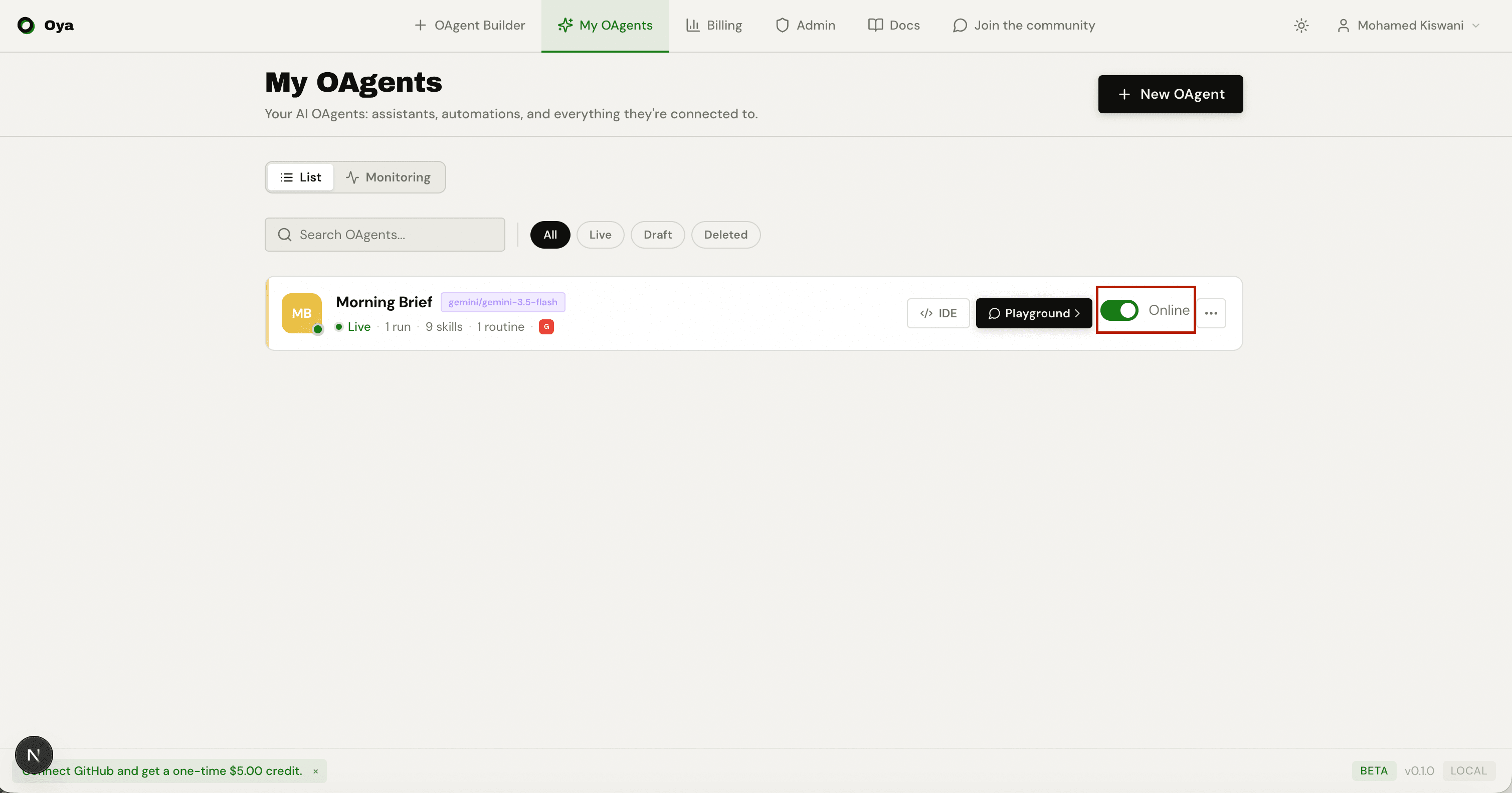
Each live OAgent card has a toggle switch. Flip it to Offline to pause the OAgent instantly: it keeps its deployment, sandbox, connections, and history, but stops processing anything. Flip it back to Online to resume. This is the fastest way to silence an OAgent (for example, while you fix a rule or investigate a bad response) without losing its setup.
While an OAgent is offline, any message arriving from a connected channel (Slack, Telegram, WhatsApp, and so on) gets a single auto-reply instead of a real answer. No LLM runs and no credits are spent. The default reply is "This agent is currently offline." and can be overridden per-OAgent with a custom offline_message in the OAgent's configuration.
OAgents List
The /agents page is the central hub for every OAgent you have created. Each OAgent appears as a card showing its name, model, status, and activity summary. OAgents fall into two types:
- Assistants: Soul + skills OAgents created through the guided builder. They run on an LLM with tool-calling capabilities.
- Automations: Script-based OAgents imported from Python scripts. They execute code directly inside a sandbox.
List and Monitoring Views
A List / Monitoring toggle sits above the OAgents. List is the default management view. Monitoring switches to a fleet health view with run counts, success rate, failures, and what's running right now, across a 24h / 7d / all window. For the full dashboard see the Monitoring page.
Filtering
Use the filter bar to narrow the List view. The All, Live, Draft, and Deleted tabs filter by status, and the search field finds OAgents by name. See Deleted tab and Restore below.
OAgent Card
Each card shows the OAgent icon, name (click to rename inline), configured model, and a status line with an activity summary (run count, skills, routines, and connected-channel icons). Live OAgents show a green pulsing dot; offline OAgents dim and show a grey dot.
On the right of each live OAgent card:
- IDE: Open the OAgent IDE to debug and fix this OAgent.
- Playground: Open the chat interface to talk to this OAgent.
- Online / Offline switch: Take the OAgent offline (hard stop) or bring it back online without undeploying it.
- More menu (…): Everything else: Open IDE, System prompt, OAgent brain, Webhooks, GitHub, APIs / Integrations, Transfer ownership, Move to organization, and Delete.
The More menu links to dedicated management surfaces:
- System prompt: View or edit the full instruction set (persona, rules, skill schemas).
- OAgent brain: Inspect or clear the persistent memory scratchpad.
- Webhooks: HTTP webhooks that invoke the OAgent on external events.
- GitHub: Connect and manage GitHub repository integration.
- APIs / Integrations: Generate API keys, view code examples, and get the embeddable widget snippet.
- Transfer ownership / Move to organization: Relocate the OAgent (see below).
- Delete: Soft-delete the OAgent (recoverable for 30 days).
Inline Rename
Click the OAgent name directly on the card to rename it inline. Type the new name and press Enter to save, or Escape to cancel. Clicking away also saves automatically. If the OAgent has a welcome message that includes the old name, it is updated to match.
Deleted Tab and Restore
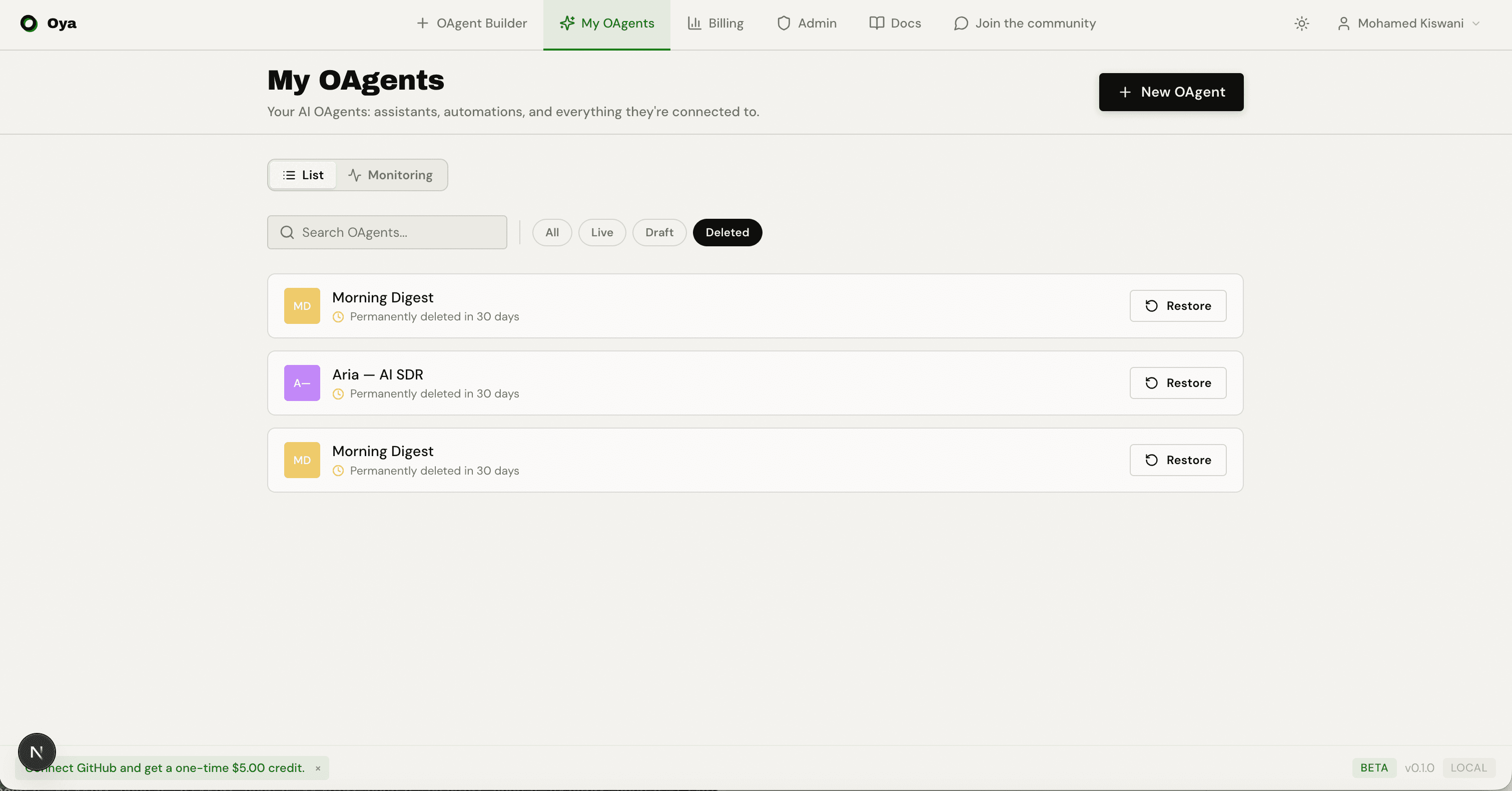
Deleting an OAgent is a soft-delete. The OAgent is taken offline and moved to the Deleted tab with all of its history intact, rather than being erased immediately. Deleted OAgents are retained for 30 days, after which they are permanently purged.
Open the Deleted filter tab to see them. Each row shows a purge countdown (for example, "Permanently deleted in 12 days") and a Restore button. Restoring clears the deletion, brings the OAgent back online, and returns it to your main list. The tab is backed by GET /api/agents/deleted; restore calls POST /api/agents/{id}/restore.
Transfer Ownership and Move to an Organization
From the More menu you can relocate an OAgent, and its private resources go with it (its private skills, knowledge, and connections).
Transfer ownership
Transfer ownership hands the OAgent to another Oya user. You enter the recipient's email and they receive an invitation. Once they accept, the OAgent (and its private resources) moves to their account and leaves yours. Until they accept, nothing changes.
Move to an organization
Move to organization hands the OAgent to an organization you belong to. The org becomes the owner and the OAgent shares the org's resources and billing. There is no acceptance step, and you stay the creator so you keep access. For how orgs, roles, and shared resources work, see the Organizations page.
System Prompt
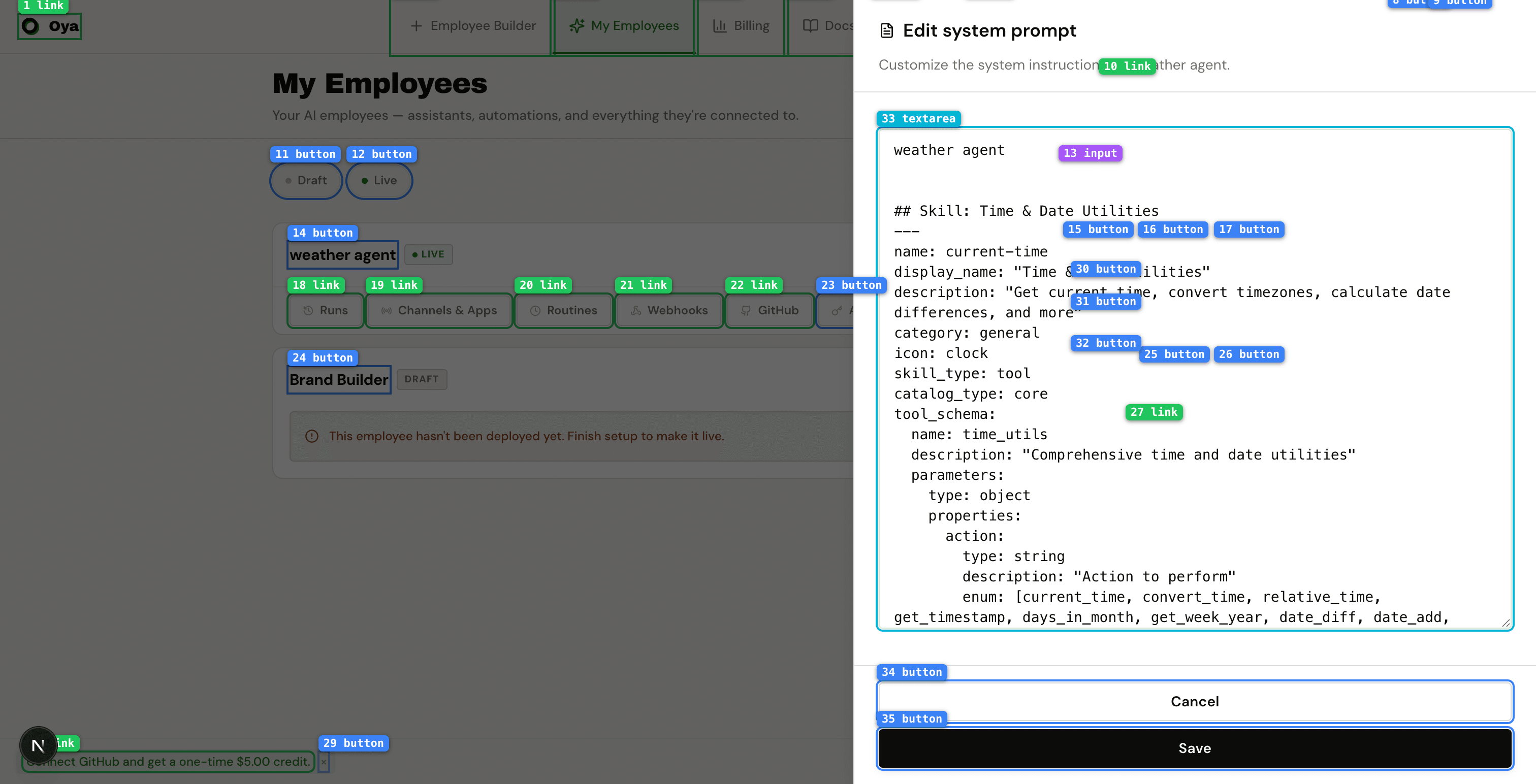
Choosing System prompt from an OAgent's More menu opens the system prompt editor in a side panel. The prompt is a single text document that contains everything the LLM sees before your first message: the persona description, behavior rules, and auto-generated skill definitions (tool schemas).
The entire prompt is editable. You can refine the persona, add or remove rules, and adjust skill definitions directly. Click Save to apply changes immediately: there is no need to redeploy.
OAgent Brain
Choosing OAgent brain from the More menu opens a side panel showing the OAgent's persistent memory scratchpad. The brain is a free-form text area that the OAgent manages automatically: it stores learned facts, user preferences, and context from previous conversations.
The brain panel is read-only by default. You can inspect what the OAgent has remembered and use the Clear button to wipe the scratchpad. After clearing, the OAgent will rebuild it from behavior rules on the next conversation.
Editing a Deployed OAgent
Re-entering the builder on a live OAgent reverts it to in-progress status: you will need to approve and redeploy after making changes. For quick fixes without a full rebuild, use the IDE button on the card instead (see the OAgent IDE).
API Key
Choosing APIs / Integrations from the More menu opens a dialog to manage API keys scoped to this specific OAgent. From here you can:
- Create a new key: Give it a name (e.g. "production", "mobile-app") and click Create. The full key is shown once, copy it immediately.
- View existing keys: See all keys for this OAgent with masked previews. Delete any key instantly.
- Copy code examples: Switch between Widget, cURL, Python, TypeScript, Swift, and Kotlin tabs to get ready-to-use integration snippets with your key pre-filled.
API keys use the OpenAI-compatible endpoint at /v1/chat/completions. Pass the key via Authorization: Bearer or X-API-Key header.
Embeddable Widget
The Widget tab generates a <script> tag you can paste into any website. It renders a floating chat bubble that connects to your OAgent via the API. Customizable attributes include title, accent color, and welcome message.
Creating a New OAgent
Click the New OAgent button in the top-right corner to open the builder. This takes you to the entry page where you can choose between:
- Templates: Start from a pre-built template (LinkedIn Influencer, SDR, SEO Manager, and more) and customize it.
- Build your own OAgent: Start from scratch with the guided five-step builder (Basics, Job Description, Skills, Resources, Deploy).
- Start with a Script: Upload an existing Python script and deploy it as an OAgent with one click.